
JupyterLab settings#
If you want to change some JupyterLab settings. You can go into Settings -> Settings Editor.
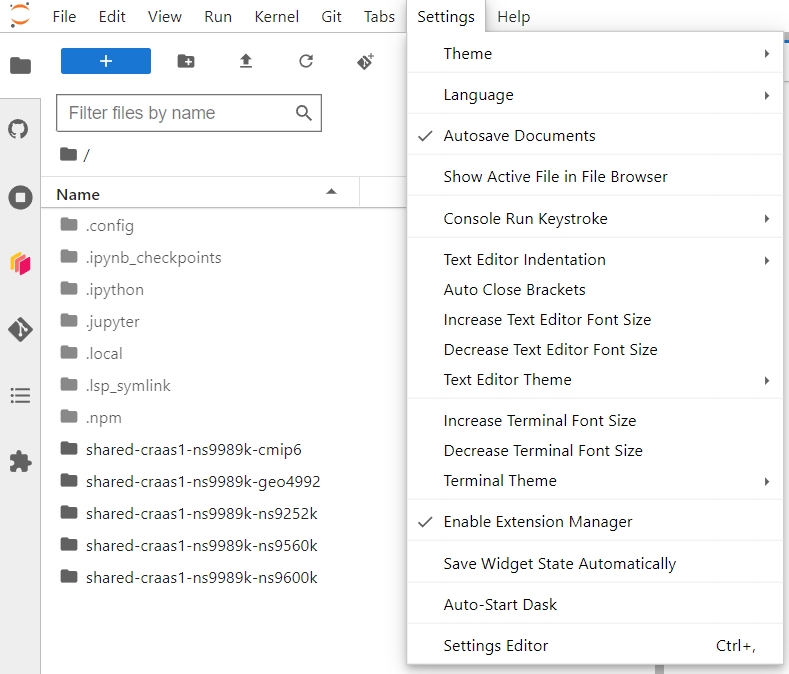
There, you will see settings that control JupyterLab extensions and looks.
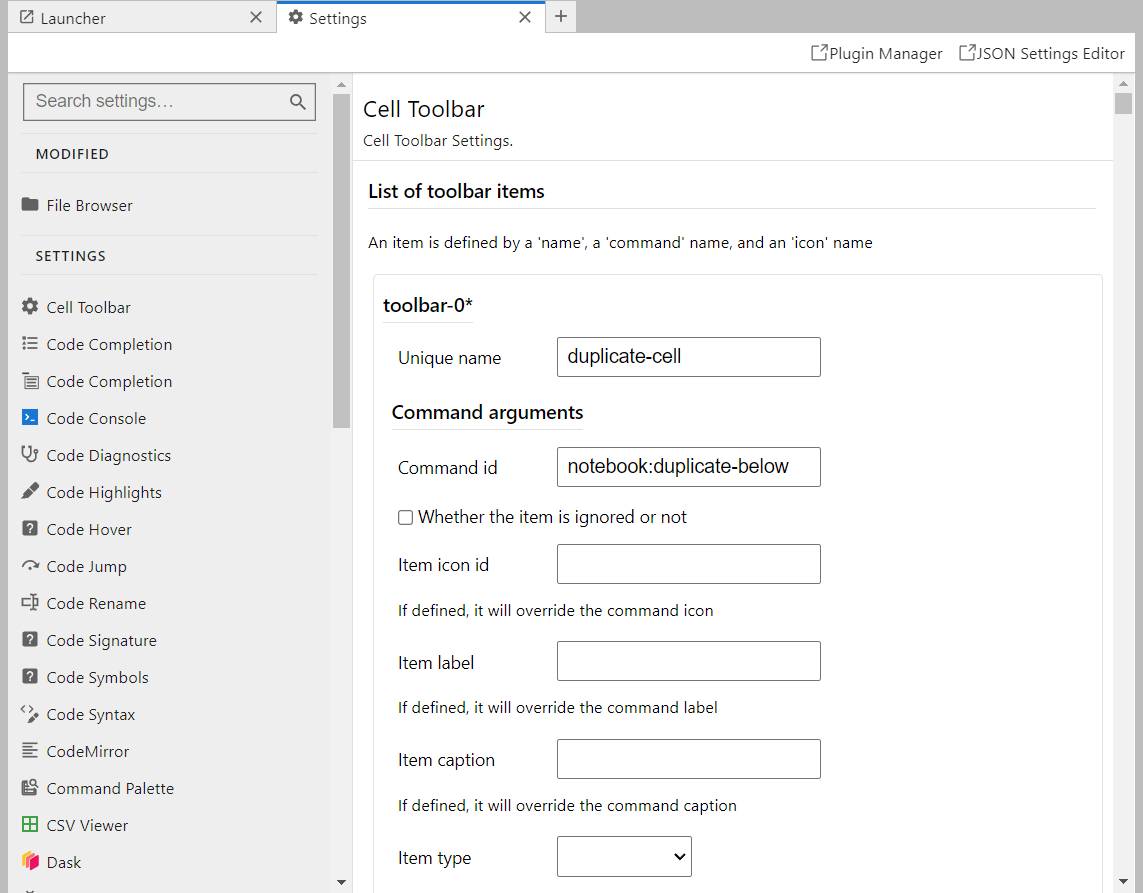
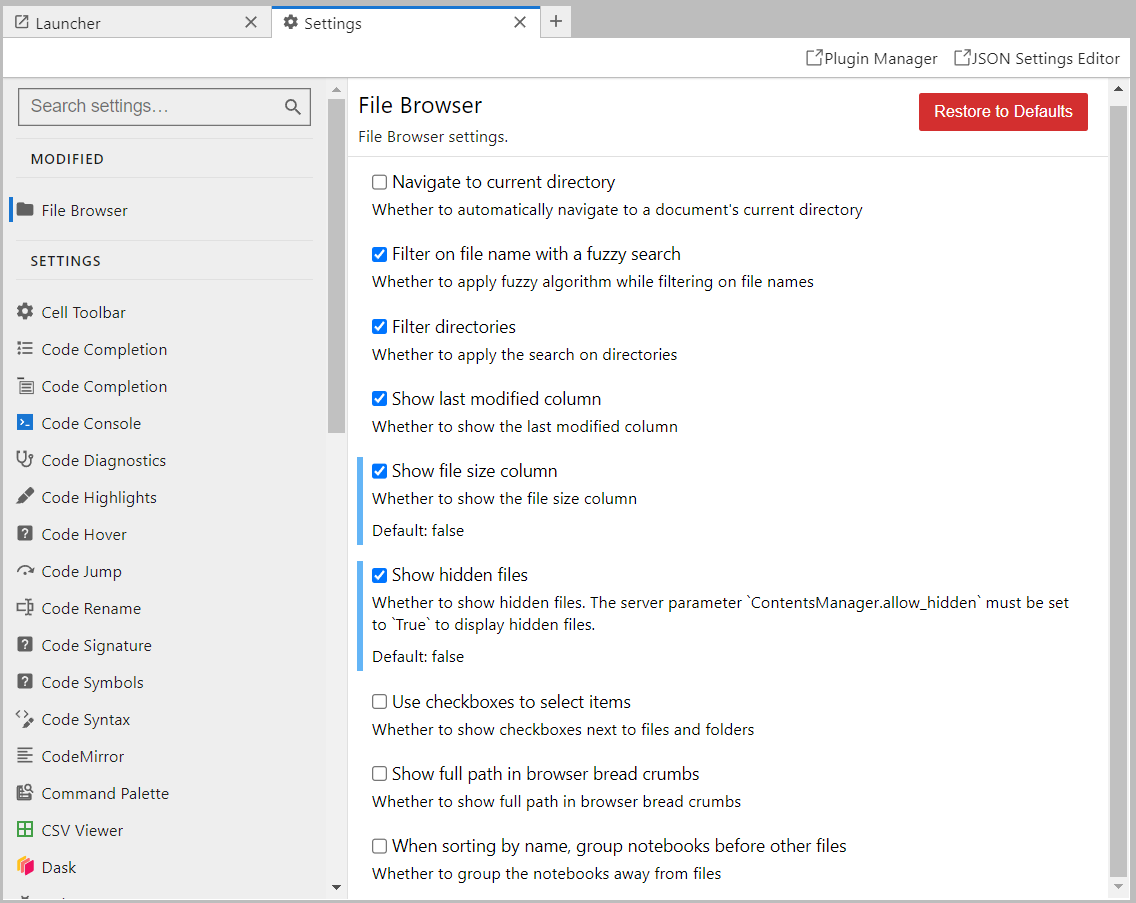
Here, for example, you can change the visibility of hidden files (the ones that start with the . in linux).
Shortcut-locale conflicts#
Some locale (f.e. Norewegian nb-NO) conflict with shortcuts and key bindings for some plugins within the hub. You can turn off some of the options, or rebind shortcuts. For rebinding go to Settings -> Settings Editor Keyboard Shortcuts tab.
If for some reason you have NB keyboard layout and []does not work you can fix these symbols that you get from Option+8,9,7 by doing the following:
In the lab menu at the top: Settings -> Settings Editor. This will open an settings tab in your workspace.
Click on the Plugin Manager in the top-right of that tab near the JSON Settings Editor. This will open a new tab. Check the “I understand bla bla bla” box.
Filter by inline.
Turn off plugins for the inline-completer extension in the order they appear.
Close Plugin Manager tab.
Refresh the browser tab (if that is not enough, you need to restart your server (File->Hub Control->Panel->Stop My Server).
Open Plugin Manager again. Filter by inline. Look if the boxes are unchecked.
Try []in one of your notebook cells.
Styling warnings in notebooks#
On the Jupyterhub, we are using pylsp as a language-server for linting, styling, formatting and other features.
If you are annoyed by ~~~~~~ wigly lines, you can disable some of them by ignoring them when pylsp compares your code to PEP8 style convention.
You can check the error codes here.
To do that. You can go to the file ~/.config/pycodestyle and add the error codes you do not like to the ignore list.
Note
Vim key bindings extensions has been added to jupyter lab. It is disabled by default but can be turned on in the Notebook Vim in the Settings Editor.